Toggle navigation
Acronis 中文知识库系统
添加
添加
草稿列表
收藏
列表
高级检索
登录
历史
张宏邦
2020-6-10 上午12:16
差异
旧内容
内容
本文介绍了启用调试日志记录的新方法。在极少数情况下需要调试日志,并且只有在Acronis支持明确要求这样做时才收集调试日志(基本上是在基于现有错误无法发现警告或错误的根本原因时)。默认情况下,请勿启用调试日志-它会迅速填充可用空间。 # 步骤1:查找组件的配置文件 日志由配置文件控制,这些文件位于相应二进制文件的文件夹中: **在32位系统上,查找“ C:\Program Files" **,注意不是"C:\Program Files (x86)" - Acronis Managed Machine service: C:\Program Files\Acronis\BackupAndRecovery\mms.config - service process: - 12730之前的版本:C:\Program Files\Acronis\BackupAndRecovery\service_process.config - 内部版本12730及更高版本:C:\Program Files\Common - Files\Acronis\BackupAndRecovery\Common\service_process.configCommon \ service_process.config - Acronis Management Server: C:\Program Files\Acronis\AMS\ abr_ams.config virtual_center_addon.config - Service Manager: C:\Program Files\Acronis\ServiceManager\asm.config - Acronis Storage Node: C:\Program Files\Acronis\StorageNode\ ss.config staging_command.config - Acronis Removable Storage Management Service: C:\Program Files\Acronis\ARSM\arsm.config - Zmq Gateway: C:\Program Files\Acronis\ZmqGw\zmqgw.config # 步骤2:停止Acronis服务 停止与此组件有关的Acronis服务。此步骤不是必须的,但是服务运行时可能正在使用配置文件,因此您将无法对其进行编辑。 # 步骤3:更改配置文件 1. 在编辑器(例如记事本)中打开配置文件。 2. 搜索`<logging>`标记: 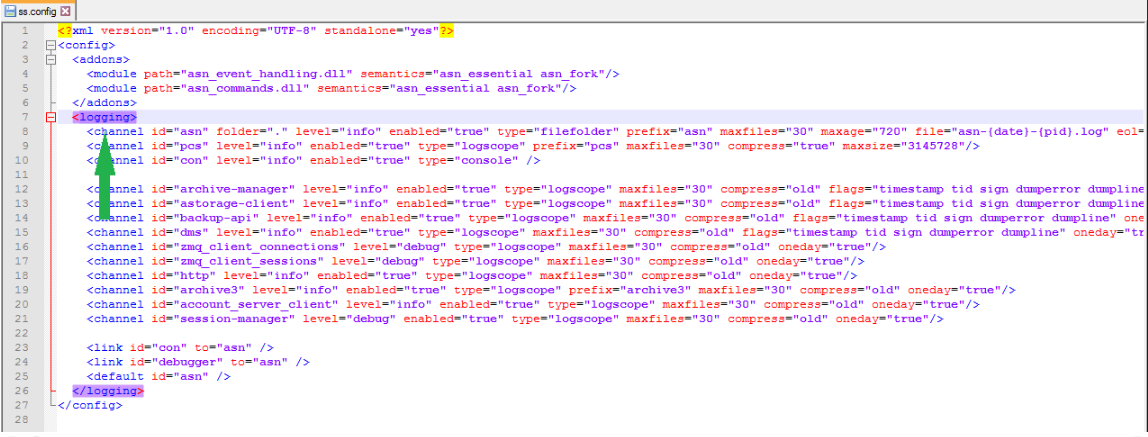 3. 查找要为所有通道启用调试日志的通道: ``` Acronis Managed Machine Service C:\Program Files\Acronis\BackupAndRecovery\ mms.config <channel id="mms"...> <channel id="alerts"...> <channel id="archive-manager"...> <channel id="astorage-client"...> <channel id="disk-manager"...> <channel id="backup-api"...> <channel id="dms"...> <channel id="protection_engine"...> <channel id="recovery-assistant"...> <channel id="zmq_client_connections"...> debug by default <channel id="zmq_client_sessions"...> debug by default <channel id="http"...> <channel id="account_server_client"...> <channel id="enforcement"...> <channel id="pcs"...> <channel id="task_execution"...> <channel id="rest_api"...> <channel id="active_protection"...> service process Builds before 12730: C:\Program Files\Acronis\BackupAndRecovery\ Build 12730 and newer: C:\Program Files\Common Files\Acronis\BackupAndRecovery\Common\ service_process.config <setlevel id="service_process"...> Acronis Management Server C:\Program Files\Acronis\AMS\ abr_ams.config <channel id="active_protection"...> <channel id="activity-stream"...> debug by default <channel id="agent-migration"...> <channel id="alerts"...> <channel id="ams"...> <channel id="async-ipc"...> <channel id="backup-assistant"...> <channel id="client-activity"...> <channel id="con"...> <channel id="curl"...> <channel id="dml_core"...> <channel id="dml_dispatcher_perf"...> <channel id="dms"...> <channel id="email_service"...> <channel id="enforcement"...> <channel id="gxt_engine_requests"...> <channel id="http"...> <channel id="perf-stat-init"...> <channel id="perf-stat-runtime"...> <channel id="protection_engine"...> <channel id="recovery-assistant"...> <channel id="registry-access"...> <channel id="session-manager"...> debug by default <channel id="server_dispatcher_perf"...> <channel id="settings"...> <channel id="tenancy_resolver"...> <channel id="sync_replication"...> debug by default <channel id="kibana"...> <channel id="update_provider"...> debug by default <channel id="rest_api"...> virtual_center_addon.config <channel id="balancing_addon"...> <channel id="balancing_addon_extra"...> debug by default <channel id="instance_merger_extra"...> debug by default <channel id="task_execution"> Service Manager C:\Program Files\Acronis\ServiceManager\ asm.config "log_level" Acronis Storage Node: C:\Program Files\Acronis\StorageNode\ ss.config <channel id="asn"...> <channel id="pcs"...> <channel id="con"...> <channel id="archive-manager"...> <channel id="astorage-client"...> <channel id="backup-api"...> <channel id="dms"...> <channel id="zmq_client_connections"...> debug by default <channel id="zmq_client_sessions" ...> debug by default <channel id="http"...> <channel id="archive3"...> <channel id="account_server_client"...> <channel id="session-manager"...> debug by default staging_command.config <channel id="task_execution"...> Acronis Removable Storage Management Service C:\Program Files\Acronis\ARSM\ arsm.config <channel id="arsm"...> <channel id="tape_hotplug"...> <channel id="tape_select"...> <channel id="tape_scsi"...> debug by default <channel id="tape_db"...> debug by default <channel id="session-manager"...> <channel id="con"...> Zmq Gateway C:\Program Files\Acronis\ZmqGw\ zmqgw.config <channel id="settings"...> <channel id="zmqgw"...> debug by default ``` 4. 将level =“ info”的值从“ info”更改为“ debug”:  5. 保存更改并关闭文件。 6. 重新启动相应的服务:在搜索中,依次单击开始 ->中的services.msc,然后按Enter->找到该服务,然后单击重新启动服务。(或者如果您在步骤2中将其停止,则启动该服务) - 更改ams.config后-> 启动Acronis Management Server service - 更改ss.config后->启动Acronis Storage Node service - 更改arsm.config后-> 启动Acronis Removable Storage Management service - 更改sp.config后-> 启动Acronis Management Machine service,以及-对于具有Acronis存储节点的计算机-启动Acronis Storage Node service # 步骤4:重现问题并收集日志 启用调试日志记录后,请重现该问题。 日志中包含进程ID和进程开始时间。 现在,您可以检查日志以调查问题的根本原因或收集Acronis系统信息,并联系Acronis客户中心寻求帮助。 日志位于: - Acronis Management Server log: C:\ProgramData\Acronis\AMS\logs - Acronis Storage Node log: C:\ProgramData\Acronis\BackupAndRecovery\ASN\logs - Acronis Management Console log: C:\ProgramData\Acronis\BackupAndRecoveryConsole\logs - Acronis Removable Storage Management service log: C:\ProgramData\Acronis\ARSM\logs - Service process log: C:\ProgramData\Acronis\ServiceProcess\logs # 步骤5:禁用调试日志记录 1. 在编辑器(例如记事本)中打开配置文件。(如果文件未打开,请停止Acronis服务) 2. 搜索`<logging>`标记。 3. 将level =“ debug”的值从“ debug”更改为“ info”。 4. 保存更改并关闭文件。 5. 重新启动相应的服务。 ## 如何为Vault Manager收集调试日志: 在安装了Management Server的计算机上执行以下操作: 1. 在AMS端停止Acronis服务; 2. 使用记事本打开C:\Program Files\Acronis\VaultManager\vault_manager.yaml ; 3. 在日志部分,更改 ``` level: info ``` 为 ``` level: debug ``` 4. 将更改保存到文件。启动Acronis服务; 5. 重现此问题并从计算机收集sysinfo。 6. 收集必要的信息后,将日志记录级别更改回info。 ## 如何收集Backup Manager的调试日志: 1. 停止Acronis Service Manager服务 2. 用记事本打开C:\Program Files\Acronis\BackupManager\backup_manager.yml; 3. 在日志部分,更改 ``` level: info ``` 为 ``` level: debug ``` 4. 将更改保存到文件。启动Acronis Service Manager服务; 5. 重现此问题并从计算机收集sysinfo。 6. 收集必要的信息后,将日志记录级别更改回info。 # 更多信息 您可以在配置文件中更改的其他参数: `folder="<folder>" `是放置日志的文件夹。例如,如果将其设置为`folder="C:\temp"`,则日志将生成为C:\temp `level="{error|warning|info|debug}"`是日志记录级别。级别低于此处指定的所有日志都不会写入日志。例如,如果设置为“ info”,则除调试日志外的所有日志都将写入日志(默认值)。如果设置为“警告”,则仅将警告和错误消息写入日志。 `enabled="{true|false}"`启用或禁用此日志。 `maxfiles="<number>"`设置日志文件的最大数量。如果日志数超过了maxfiles数,则将删除较旧的日志。 `maxage="<number>" `设置日志文件的最长期限(以小时为单位)。如果您的日志超过了最大容量,则将删除较旧的日志。 原文链接:https://kb.acronis.com/content/60392
新内容
内容
本文介绍了启用调试日志记录的新方法。在极少数情况下需要调试日志,并且只有在Acronis支持明确要求这样做时才收集调试日志(基本上是在基于现有错误无法发现警告或错误的根本原因时)。默认情况下,请勿启用调试日志-它会迅速填充可用空间。 # 步骤1:查找组件的配置文件 日志由配置文件控制,这些文件位于相应二进制文件的文件夹中: **(!)注意**在32位系统上应查找“ C:\Program Files (x86)" ,而不是"C:\Program Files" - Acronis Managed Machine service: C:\Program Files\Acronis\BackupAndRecovery\mms.config - service process: - 12730之前的版本:C:\Program Files\Acronis\BackupAndRecovery\service_process.config - 内部版本12730及更高版本:C:\Program Files\Common - Files\Acronis\BackupAndRecovery\Common\service_process.configCommon \ service_process.config - Acronis Management Server: C:\Program Files\Acronis\AMS\ abr_ams.config virtual_center_addon.config - Service Manager: C:\Program Files\Acronis\ServiceManager\asm.config - Acronis Storage Node: C:\Program Files\Acronis\StorageNode\ ss.config staging_command.config - Acronis Removable Storage Management Service: C:\Program Files\Acronis\ARSM\arsm.config - Zmq Gateway: C:\Program Files\Acronis\ZmqGw\zmqgw.config # 步骤2:停止Acronis服务 停止与此组件有关的Acronis服务。此步骤不是必须的,但是服务运行时可能正在使用配置文件,因此您将无法对其进行编辑。 # 步骤3:更改配置文件 1. 在编辑器(例如记事本)中打开配置文件。 2. 搜索`<logging>`标记:  3. 查找要为所有通道启用调试日志的通道: ``` Acronis Managed Machine Service C:\Program Files\Acronis\BackupAndRecovery\ mms.config <channel id="mms"...> <channel id="alerts"...> <channel id="archive-manager"...> <channel id="astorage-client"...> <channel id="disk-manager"...> <channel id="backup-api"...> <channel id="dms"...> <channel id="protection_engine"...> <channel id="recovery-assistant"...> <channel id="zmq_client_connections"...> debug by default <channel id="zmq_client_sessions"...> debug by default <channel id="http"...> <channel id="account_server_client"...> <channel id="enforcement"...> <channel id="pcs"...> <channel id="task_execution"...> <channel id="rest_api"...> <channel id="active_protection"...> service process Builds before 12730: C:\Program Files\Acronis\BackupAndRecovery\ Build 12730 and newer: C:\Program Files\Common Files\Acronis\BackupAndRecovery\Common\ service_process.config <setlevel id="service_process"...> Acronis Management Server C:\Program Files\Acronis\AMS\ abr_ams.config <channel id="active_protection"...> <channel id="activity-stream"...> debug by default <channel id="agent-migration"...> <channel id="alerts"...> <channel id="ams"...> <channel id="async-ipc"...> <channel id="backup-assistant"...> <channel id="client-activity"...> <channel id="con"...> <channel id="curl"...> <channel id="dml_core"...> <channel id="dml_dispatcher_perf"...> <channel id="dms"...> <channel id="email_service"...> <channel id="enforcement"...> <channel id="gxt_engine_requests"...> <channel id="http"...> <channel id="perf-stat-init"...> <channel id="perf-stat-runtime"...> <channel id="protection_engine"...> <channel id="recovery-assistant"...> <channel id="registry-access"...> <channel id="session-manager"...> debug by default <channel id="server_dispatcher_perf"...> <channel id="settings"...> <channel id="tenancy_resolver"...> <channel id="sync_replication"...> debug by default <channel id="kibana"...> <channel id="update_provider"...> debug by default <channel id="rest_api"...> virtual_center_addon.config <channel id="balancing_addon"...> <channel id="balancing_addon_extra"...> debug by default <channel id="instance_merger_extra"...> debug by default <channel id="task_execution"> Service Manager C:\Program Files\Acronis\ServiceManager\ asm.config "log_level" Acronis Storage Node: C:\Program Files\Acronis\StorageNode\ ss.config <channel id="asn"...> <channel id="pcs"...> <channel id="con"...> <channel id="archive-manager"...> <channel id="astorage-client"...> <channel id="backup-api"...> <channel id="dms"...> <channel id="zmq_client_connections"...> debug by default <channel id="zmq_client_sessions" ...> debug by default <channel id="http"...> <channel id="archive3"...> <channel id="account_server_client"...> <channel id="session-manager"...> debug by default staging_command.config <channel id="task_execution"...> Acronis Removable Storage Management Service C:\Program Files\Acronis\ARSM\ arsm.config <channel id="arsm"...> <channel id="tape_hotplug"...> <channel id="tape_select"...> <channel id="tape_scsi"...> debug by default <channel id="tape_db"...> debug by default <channel id="session-manager"...> <channel id="con"...> Zmq Gateway C:\Program Files\Acronis\ZmqGw\ zmqgw.config <channel id="settings"...> <channel id="zmqgw"...> debug by default ``` 4. 将level =“ info”的值从“ info”更改为“ debug”:  5. 保存更改并关闭文件。 6. 重新启动相应的服务:在搜索中,依次单击开始 ->中的services.msc,然后按Enter->找到该服务,然后单击重新启动服务。(或者如果您在步骤2中将其停止,则启动该服务) - 更改ams.config后-> 启动 Acronis Management Server 服务 - 更改ss.config后->启动 Acronis Storage Node 服务 - 更改arsm.config后-> 启动 Acronis Removable Storage Management 服务 - 更改sp.config后-> 启动 Acronis Management Machine 服务,以及-对于具有Acronis存储节点的计算机-启动Acronis Storage Node 服务 # 步骤4:重现问题并收集日志 启用调试日志记录后,请重现该问题。 日志中包含进程ID和进程开始时间。 现在,您可以检查日志以调查问题的根本原因或收集Acronis系统信息,并联系Acronis客户中心寻求帮助。 日志位于: - Acronis Management Server log: C:\ProgramData\Acronis\AMS\logs - Acronis Storage Node log: C:\ProgramData\Acronis\BackupAndRecovery\ASN\logs - Acronis Management Console log: C:\ProgramData\Acronis\BackupAndRecoveryConsole\logs - Acronis Removable Storage Management service log: C:\ProgramData\Acronis\ARSM\logs - Service process log: C:\ProgramData\Acronis\ServiceProcess\logs # 步骤5:禁用调试日志记录 1. 在编辑器(例如记事本)中打开配置文件。(如果文件未打开,请停止Acronis服务) 2. 搜索`<logging>`标记。 3. 将level =“ debug”的值从“ debug”更改为“ info”。 4. 保存更改并关闭文件。 5. 重新启动相应的服务。 ## 如何为Vault Manager收集调试日志: 在安装了Management Server的计算机上执行以下操作: 1. 在AMS端停止Acronis服务; 2. 使用记事本打开C:\Program Files\Acronis\VaultManager\vault_manager.yaml ; 3. 在日志部分,更改 ``` level: info ``` 为 ``` level: debug ``` 4. 将更改保存到文件。启动Acronis服务; 5. 重现此问题并从计算机收集sysinfo。 6. 收集必要的信息后,将日志记录级别更改回info。 ## 如何收集Backup Manager的调试日志: 1. 停止Acronis Service Manager服务 2. 用记事本打开C:\Program Files\Acronis\BackupManager\backup_manager.yml; 3. 在日志部分,更改 ``` level: info ``` 为 ``` level: debug ``` 4. 将更改保存到文件。启动Acronis Service Manager服务; 5. 重现此问题并从计算机收集sysinfo。 6. 收集必要的信息后,将日志记录级别更改回info。 # 更多信息 您可以在配置文件中更改的其他参数: `folder="<folder>" `是放置日志的文件夹。例如,如果将其设置为`folder="C:\temp"`,则日志将生成为C:\temp `level="{error|warning|info|debug}"`是日志记录级别。级别低于此处指定的所有日志都不会写入日志。例如,如果设置为“ info”,则除调试日志外的所有日志都将写入日志(默认值)。如果设置为“警告”,则仅将警告和错误消息写入日志。 `enabled="{true|false}"`启用或禁用此日志。 `maxfiles="<number>"`设置日志文件的最大数量。如果日志数超过了maxfiles数,则将删除较旧的日志。 `maxage="<number>" `设置日志文件的最长期限(以小时为单位)。如果您的日志超过了最大容量,则将删除较旧的日志。 原文链接:https://kb.acronis.com/content/60392
返回
